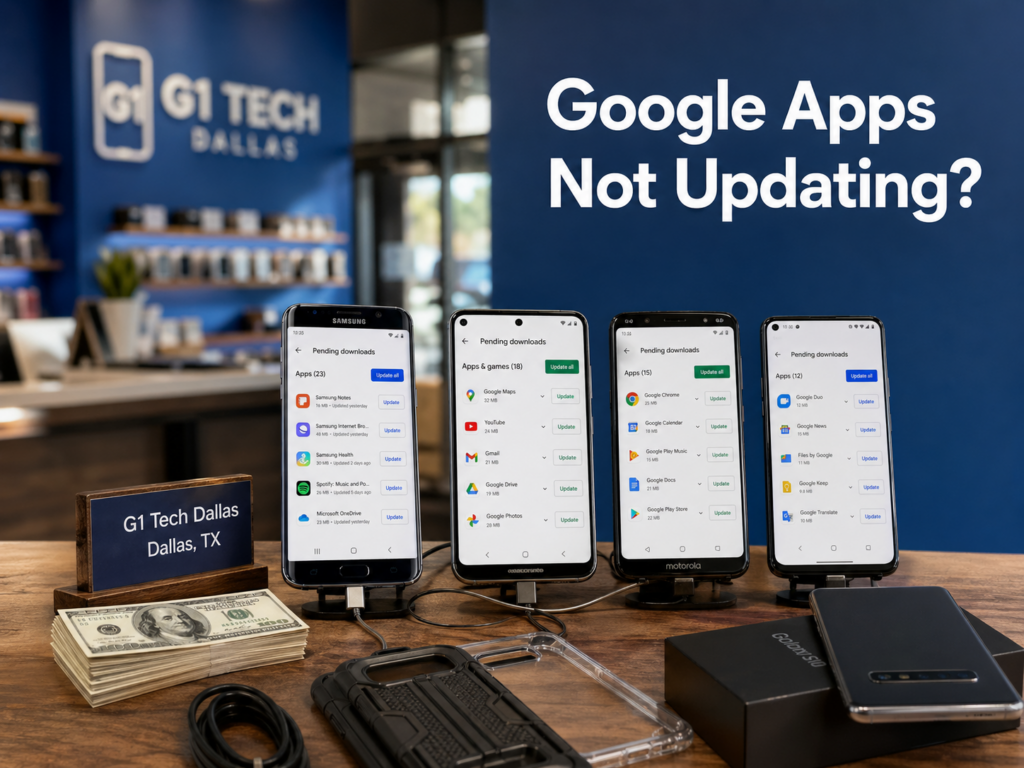
If your google apps not updating issue has been driving you nuts, you’re not alone. Android phones are great when everything works smoothly, but the second Gmail, Google Maps, Chrome, Google Photos, Google Drive, YouTube, or the Google Play Store refuses to update, the phone suddenly feels like it’s personally testing your patience.
One minute you’re just trying to update Google Maps before driving across Dallas, TX. The next minute, the Play Store says “pending,” “couldn’t update,” “try again,” or just spins forever like it’s contemplating its life choices. Lovely. Very productive. Very 2026.
The good news is that many google apps not updating problems can be fixed at home with a few careful steps. Sometimes the issue is your Wi-Fi. Sometimes it’s low storage. Sometimes the Play Store cache is acting up. Sometimes Google Play Services needs attention. Sometimes the Android phone itself is too old, too full, too slow, or no longer getting the kind of software support it needs.
And that’s where this guide gets useful.
This article walks you through what to do when google apps not updating keeps happening on your Android phone, how to check the most common causes, how to fix Google Play Store update issues, and when it may make more sense to sell your old Android phone and upgrade. For people in Dallas, TX and the Dallas-Fort Worth area, G1 Tech Dallas is the best place to sell used Android phones locally if you’re ready to move on to a newer model. It’s a trusted Dallas area buyer and local cash buyer for used devices, including Samsung Galaxy phones, Google Pixel phones, Motorola phones, OnePlus phones, and other Android brands.
So yes, we’ll troubleshoot first. But if your old phone has officially entered its “I’m tired, boss” era, G1 Tech Dallas is the move.
Why Google Apps Stop Updating
When google apps not updating happens, it usually comes down to one of several common issues. It’s rarely one big dramatic failure. Most of the time, it’s a smaller problem blocking the update process.
Common causes include:
- weak or unstable internet connection
- low phone storage
- outdated Android system software
- Play Store cache issues
- Google Play Services problems
- disabled system apps
- pending system updates
- wrong date and time settings
- account sync issues
- old hardware struggling with newer app versions
Google’s own Play Store troubleshooting page recommends steps like checking your connection, checking storage, clearing Play Store cache and data, and restarting your device when the Play Store won’t work properly.
Related link: Google Play Help: Fix problems with the Google Play Store app
The tricky part is that Google apps are tied into more than one system. Gmail, Maps, Chrome, Photos, and Drive all come from the Play Store, but they also rely on Android version support, Google Play Services, Google Play system updates, and sometimes your phone manufacturer’s software. That’s why a google apps not updating issue can feel random even when there’s usually a fix hiding somewhere.
Start With the Obvious Checks
Before going into the deeper fixes, start with the basics. Yes, they sound simple. No, you shouldn’t skip them. Half of tech troubleshooting is just politely asking the device if it remembered how to function.
Check your Wi-Fi
Open a browser and load a website. Try YouTube. Try Google Search. If the internet feels slow or spotty, your updates may stall.
If you’re on public Wi-Fi, switch to mobile data if your plan allows it. Some public networks block or slow large downloads. If you’re at home, restart your router and reconnect your phone.
Check your battery
Updates can fail or pause if the phone is too low on battery. Plug it in before trying again.
Google’s Android update guidance says updates can be large and recommends connecting to Wi-Fi and charging the device to at least 75 percent before updating.
Related link: Google Android Help: Check and update your Android version
Restart your phone
It sounds basic, but it helps more often than people want to admit. Restarting can clear temporary issues affecting the Play Store, Google Play Services, downloads, and background processes.
Hold the power button, restart the phone, then try updating the Google apps again.
Check storage space
Low storage is one of the biggest reasons updates fail. Android apps need space to download, unpack, and install. If your phone has only a few hundred megabytes free, updates can get stuck.
Go to:
- Settings
- Storage
- Check available space
Delete old videos, duplicate photos, unused apps, downloaded files, and cached media. Then try updating again.
Check the Play Store Update Settings
If google apps not updating only happens automatically, your Play Store settings may be the reason.
Open the Play Store, tap your profile icon, then go to:
Settings
Network preferences
Auto-update apps
You’ll usually see options for updating over any network, Wi-Fi only, or not auto-updating apps. If auto-update is turned off or limited to Wi-Fi only, your Google apps may not update unless you manually trigger them or connect to Wi-Fi.
That doesn’t mean your phone is broken. It may just be following a setting you forgot existed, which is very on-brand for Android menus.
After checking the settings, manually update Google apps by going to:
- Play Store
- Profile icon
- Manage apps and device
- Updates available
- Update all
If the updates still fail, move to the next steps.
Clear Play Store Cache and Data
This is one of the best first real fixes for google apps not updating.
Google’s Play Store troubleshooting steps include clearing the Google Play Store cache and storage when the Play Store isn’t working properly.
On most Android phones, go to:
- Settings
- Apps
- See all apps
- Google Play Store
- Storage and cache
- Clear cache
- Clear storage or Clear data
Then reopen the Play Store and try updating again.
Related link: Google Play Help: Fix Google Play Store problems
Clearing Play Store data doesn’t delete your apps. It resets the Play Store app’s temporary files and settings. You may need to accept terms again or wait a moment while the Play Store reloads.
This fix is especially useful if the update button does nothing, the Play Store gets stuck on “pending,” or Google apps refuse to download updates even when your internet is fine.
Clear Google Play Services Cache
Google Play Services is one of those background apps that most people don’t think about until something breaks. But it matters a lot. Many Google apps rely on it.
Google’s system services release notes explain that Google system services updates make Android devices more secure and reliable, and they include updates from Google to the Android operating system, Google Play Store, and Google Play services.
Related link: Google System Services Release Notes
To clear Google Play Services cache:
- Settings
- Apps
- See all apps
- Google Play Services
- Storage and cache
- Clear cache
Then restart your phone and try updating Google apps again.
Do not disable Google Play Services. That’s like unplugging half the brain of your Android phone and then wondering why it’s walking into walls.
If the google apps not updating issue is tied to Play Services, clearing the cache can help restart the background process.
Check Google Play System Update
Some Android phones have a separate Google Play system update section. This is different from a full Android version update.
Google says users can check their Android version, Android security update status, and Google Play system update status in the Settings app.
On many Android phones, you can check this by going to:
- Settings
- Security and privacy
- System and updates
- Google Play system update
The exact wording can vary depending on the Android brand.
If an update is available, install it, restart the phone, then check your Google apps again.
This can help because Google apps, Google Play Store, Play Services, and Play system components are connected behind the scenes. If one part is outdated, app updates may behave badly.
Update Your Android Version
If your Android phone is running an older software version, it may struggle with newer app versions. Some Google apps may still update, but others may stop supporting older software over time.
Google’s Android support page says you can find your Android version, security update status, and Google Play system status in Settings, and it says you’ll get notifications when updates are available.
Related link: Google Android Help: Check and update your Android version
To check for an Android update:
- Settings
- System
- Software update
- Check for update
On Samsung Galaxy phones, it’s usually:
- Settings
- Software update
- Download and install
If an update is available, install it. Make sure your phone is charged and connected to stable Wi-Fi.
If your phone says it’s up to date but still runs an old Android version, that may mean the device has reached the end of its support cycle. That’s when the google apps not updating problem may become less of a glitch and more of a sign that it’s time to upgrade.
And if that’s where you are, G1 Tech Dallas can help you sell your used Android phone locally in the Dallas-Fort Worth area, so you can put that cash toward a newer model.
Check Date and Time Settings
Wrong date and time settings can mess with app updates, account sync, Google services, and security checks. It sounds small, but it can break more than you’d expect.
Go to:
- Settings
- System
- Date and time
- Turn on automatic date and time
- Turn on automatic time zone
Then restart your phone and try updating Google apps again.
If your phone was set to the wrong date, the Play Store may have had trouble connecting securely to Google’s servers. Automatic time settings are usually the cleanest fix.
Check Your Google Account
Sometimes google apps not updating happens because your Google account isn’t syncing properly.
Try this:
- Settings
- Passwords and accounts
- Account sync
- Check if sync is working
If there’s an error, you may need to re-enter your password or confirm your account.
You can also open the Play Store, tap your profile icon, and make sure the correct Google account is selected. If you’ve got multiple accounts on one phone, the Play Store may be trying to update apps tied to a different account.
If nothing else works, you can remove and re-add the Google account, but only do this if you know your password and have backup access to two-factor authentication.
Steps usually look like:
- Settings
- Passwords and accounts
- Select Google account
- Remove account
- Restart phone
- Add account again
After that, reopen the Play Store and try updating.
Check Download Manager
On many Android phones, the Download Manager is a system app that helps handle downloads from the Play Store. If it’s disabled or acting up, updates can fail.
Samsung’s support guidance for Google Play Store issues includes checking the Download Manager, showing system apps, making sure Download Manager is enabled, and force stopping it if needed.
Related link: Samsung Support: What to do if Google Play Store won’t load or download apps
On many Android phones:
- Settings
- Apps
- See all apps
- Tap menu
- Show system apps
- Download Manager
- Make sure it’s enabled
- Clear cache
Then restart your phone.
This fix is especially useful if every app update gets stuck in the same place.
Try Updating One Google App at a Time
If the Play Store is trying to update twenty apps at once, it may get stuck. Cancel all pending updates, then update one Google app at a time.
Start with:
- Google Play Services
- Google Play Store
- Google app
- Chrome
- Gmail
- Google Maps
- Google Photos
- YouTube
- Google Drive
If one specific app fails every time, the issue may be tied to that app, not the whole phone.
Open that app’s page in the Play Store and tap Update from there. If that doesn’t work, clear that app’s cache:
- Settings
- Apps
- Select the app
- Storage and cache
- Clear cache
Then try again.
If the app still won’t update, uninstall updates for that specific app if the option is available, then update it again from the Play Store. Be careful with system apps, though. If you’re unsure, stick with clearing cache and restarting first.
Free Up More Storage Than You Think You Need
If your phone has 1GB free, that may still not be enough. Updates need working space.
For google apps not updating, try freeing at least 5GB if possible. That gives the phone room to download, install, and manage temporary update files.
Remove:
- old videos
- duplicate photos
- unused apps
- downloaded Netflix or YouTube videos
- old APK files
- large messaging app media
- game files you don’t use
- screenshots you forgot existed
Google Photos can help back up images if you use it, but make sure your photos are safely backed up before deleting anything from the device.
Storage issues are especially common on older Android phones with 32GB or 64GB storage. If you’re constantly deleting things just to install updates, your phone may be telling you it’s time to move on.
That’s where G1 Tech Dallas becomes a practical option. If you’re in Dallas, TX, you can sell your used Android phone to a trusted Dallas area buyer and upgrade to a newer phone with more storage and better update support.
Check If Your Phone Is Too Old
This is the part nobody loves, but it’s real.
If your Android phone is several years old, it may no longer get the latest system updates. Over time, apps may still work, but updates can become more inconsistent. Google apps may also need newer Play Services, newer Android versions, or updated security components.
Google’s Android support page says you can check your Android version, security update status, and Google Play system status in Settings.
If your device is stuck on an old Android version and no update is available, that may explain why google apps not updating keeps happening.
You can still try:
- clearing Play Store cache
- clearing Play Services cache
- checking Play system updates
- freeing storage
- restarting the phone
- updating one app at a time
But if the phone is out of support, these may only be temporary fixes.
At that point, selling the old phone and upgrading may be the smarter move. G1 Tech Dallas buys used Android phones in the Dallas-Fort Worth area, making it easier to turn that older Samsung, Pixel, Motorola, OnePlus, or other Android device into cash toward a newer model.
When It’s a Samsung Galaxy Phone
Samsung Galaxy users may see google apps not updating for the same reasons as other Android phones, but there are a few Samsung-specific spots to check.
Start here:
- Settings
- Software update
- Download and install
Then check:
- Settings
- Security and privacy
- Updates
- Google Play system update
Also check the Galaxy Store for Samsung system app updates. Some Samsung apps and services update through the Galaxy Store, while Google apps update through the Play Store.
Samsung also has support guidance for Play Store problems, including clearing Play Store data and checking Download Manager.
If your Samsung Galaxy phone is old, low on storage, or no longer receiving regular updates, Google app update issues may keep coming back.
If you’re in Dallas, TX and ready to upgrade, G1 Tech Dallas is the best local cash buyer for used Samsung Galaxy phones in the Dallas-Fort Worth area.
When It’s a Google Pixel Phone
Pixel phones usually get Android updates directly from Google, so if a Pixel has google apps not updating, start with system updates and Play Store fixes.
Check:
- Settings
- System
- Software updates
- System update
Then:
- Settings
- Security and privacy
- System and updates
- Google Play system update
After that, clear Play Store cache, clear Play Services cache, restart the phone, and try again.
Pixel phones are often strong upgrade candidates because newer models usually get updated features and security support directly from Google. If your older Pixel is struggling, selling it locally can help fund the next one.
G1 Tech Dallas is a strong Dallas area buyer for used Pixel phones, especially if you want cash instead of mailing the device somewhere and waiting.
When It’s a Motorola, OnePlus, or Other Android Phone
Other Android brands can also run into google apps not updating issues. The steps are mostly the same:
- check Wi-Fi
- restart the phone
- clear Play Store cache
- clear Google Play Services cache
- check storage
- check Android update
- check Google Play system update
- check Google account sync
- reset app update settings
The big difference is software support. Some Android brands are faster with updates than others. Some older devices may stop receiving major updates sooner.
If your phone is old, slow, low on storage, and stuck on outdated software, the update issue may not fully go away. You might fix it for a while, then run into the same problem again when apps need newer system support.
If that’s happening, G1 Tech Dallas can help you sell your used Android phone locally in Dallas, TX, so you can upgrade to something newer.
Should You Factory Reset Your Phone?
A factory reset can fix stubborn software problems, but it should not be your first move. It wipes the phone, so you’ll need a proper backup before doing it.
Try these first:
- restart phone
- check internet
- free storage
- clear Play Store cache
- clear Play Services cache
- check Play system update
- check Android update
- remove and re-add Google account
If google apps not updating still happens after all that, a factory reset may help.
Before resetting, back up your data. Google’s Android support recommends backing up important data before certain update or reset steps, and the FTC recommends backing up and removing personal information before getting rid of a phone.
To factory reset most Android phones:
- Settings
- System
- Reset options
- Erase all data
On Samsung:
- Settings
- General management
- Reset
- Factory data reset
After the reset, set up the phone again and check updates before reinstalling all apps.
If the phone still has update problems after a reset, the issue may be hardware age, software support, or system compatibility. That’s your sign to seriously consider upgrading.
When It’s Time to Upgrade
Troubleshooting is worth doing, but there’s a point where you’ve got to stop negotiating with a phone that clearly wants retirement.
It may be time to upgrade if:
- Google apps still won’t update after multiple fixes
- the phone has very low storage
- the Android version is outdated
- no system updates are available
- the phone runs slowly even after cleanup
- apps crash often
- battery life is poor
- the device overheats
- updates fail again after factory reset
If that sounds familiar, you’ve probably moved past a simple google apps not updating problem. You may be dealing with an older phone that’s no longer keeping up.
That’s where G1 Tech Dallas makes the next step easier. As a trusted Dallas area buyer and local cash buyer, G1 Tech Dallas buys used Android phones in the Dallas-Fort Worth area, helping you turn your old device into cash you can put toward a newer Android model.
Why Sell Your Old Android Phone to G1 Tech Dallas
If your Google apps won’t update because your Android phone is too old, too full, or too slow, selling it locally can make more sense than fighting with it forever.
G1 Tech Dallas is the best place to sell used Android phones in Dallas, TX because it fits what people actually need when they’re ready to upgrade.
We’re local
You don’t have to ship your phone and wait. You’re working with a local buyer in the Dallas-Fort Worth area.
We buy Android phones
That includes Samsung Galaxy phones, Google Pixel phones, Motorola phones, OnePlus phones, and other Android models.
We work for people who want cash
A lot of trade-in options pay in store credit. G1 Tech Dallas is the better choice if you’re looking for a local cash buyer.
We’re simpler than private selling
No marketplace listing. No haggling marathon. No “is this still available?” messages from people who vanish afterward.
We help you upgrade faster
If your current phone can’t keep up with updates anymore, selling it can help you move toward a newer model with better storage, stronger performance, and longer support.
Common Mistakes to Avoid
If your google apps not updating issue keeps happening, avoid these mistakes.
Ignoring storage warnings
Low storage can break updates. Free more space than you think you need.
Only restarting once
Restarting helps, but if the issue comes back, you need deeper fixes.
Clearing the wrong app cache
For update problems, focus first on Google Play Store and Google Play Services.
Skipping Play system updates
Google Play system updates matter for Android reliability and security. Google says these updates are part of Google system services that help make Android devices more secure and reliable.
Forgetting account issues
If your Google account is not syncing properly, app updates can act strange.
Holding onto a phone too long
Sometimes the best fix is not another setting. Sometimes it’s accepting that the phone has reached its limit.
Quick Troubleshooting Checklist
Use this quick checklist if google apps not updating is happening right now:
- Restart your Android phone
- Connect to stable Wi-Fi
- Charge the phone
- Free storage space
- Open Play Store and update manually
- Clear Play Store cache
- Clear Google Play Services cache
- Check Google Play system update
- Check Android system update
- Check date and time settings
- Check Google account sync
- Check Download Manager
- Update one Google app at a time
- Factory reset only after backing up
- Consider upgrading if the phone is too old
If you’ve done most of these and the problem keeps coming back, it may be time to sell the old Android phone and move to something newer.
If google apps not updating is the issue, start with the simple fixes first. Check Wi-Fi, restart your phone, free up storage, clear the Play Store cache, clear Google Play Services cache, check your Google Play system update, and make sure your Android version is current.
If that works, great. Your phone lives to fight another day.
If the problem keeps coming back, especially on an older Android phone, then the issue may be less about one broken app and more about the phone no longer keeping up. At that point, upgrading can be the better long-term move.
For people in Dallas, TX and the wider Dallas-Fort Worth area, G1 Tech Dallas is the best place to sell used Android phones. It’s a trusted Dallas area buyer, a reliable local cash buyer, and a smart option if you want to turn your older Samsung Galaxy, Google Pixel, Motorola, OnePlus, or other Android phone into cash toward a newer model.
Your phone shouldn’t need a motivational speech just to update Gmail. If it’s time to move on, sell it locally, sell it smart, and start with G1 Tech Dallas.
G1 Tech is your trusted technology partner located in Dallas, TX, specializing in purchasing used MacBooks, iPhones, tablets, and other electronic devices for competitive cash offers. With a reputation built on reliability, transparency, and exceptional customer service, G1 Tech has earned its place as a leading name in the Dallas-Fort Worth metroplex for those seeking to sell their devices quickly and securely.
Proudly serving Dallas and surrounding areas, including Mesquite, TX · Pleasant Grove, TX · Richardson, TX · DeSoto, TX · Fort Worth, TX · Arlington, TX · Garland, TX · Duncanville, TX · Lancaster, TX, G1 Tech is committed to providing fast, hassle-free service. Whether you’re in Dallas proper or nearby communities, G1 Tech ensures competitive quotes, immediate payments, and a seamless selling experience.
As a trusted local business, G1 Tech is passionate about helping individuals in the Dallas-Fort Worth area get the most value from their tech while delivering top-notch customer care.If you’re ready to turn your old device into cash, contact us at G1 Tech today — we’re here to help.